Why should I ‘embed’ my fonts?
Embedding a font attaches a bit of coding to your document so the font will stay true to the original font and format. This becomes necessary because the fonts on one computer may not be the same as the fonts on another computer. So when the file is shared with others (in this case as a PDF created from a Word document), the receiving computer will reject the font and substitute another, often with undesirable results.
The steps below outline how I embedded fonts when preparing PDF files for my children’s books’ manuscripts for uploading to Kindle Direct Publishing and IngramSpark.
Step One: Set up Word to embed fonts in a document.
1. Open Microsoft Word.
2. Click on File.
3. Toward the bottom of the list, click on Options.
4. Click on Save.
5. At the bottom of the dialog box, click to place a checkmark next to “Embed fonts in the file” and next to “Embed only the fonts used in the document”.
6. Click on OK.

Step Two: Save the document as a PDF file.
There are two different options for accomplishing this.
Option One (works sometimes).
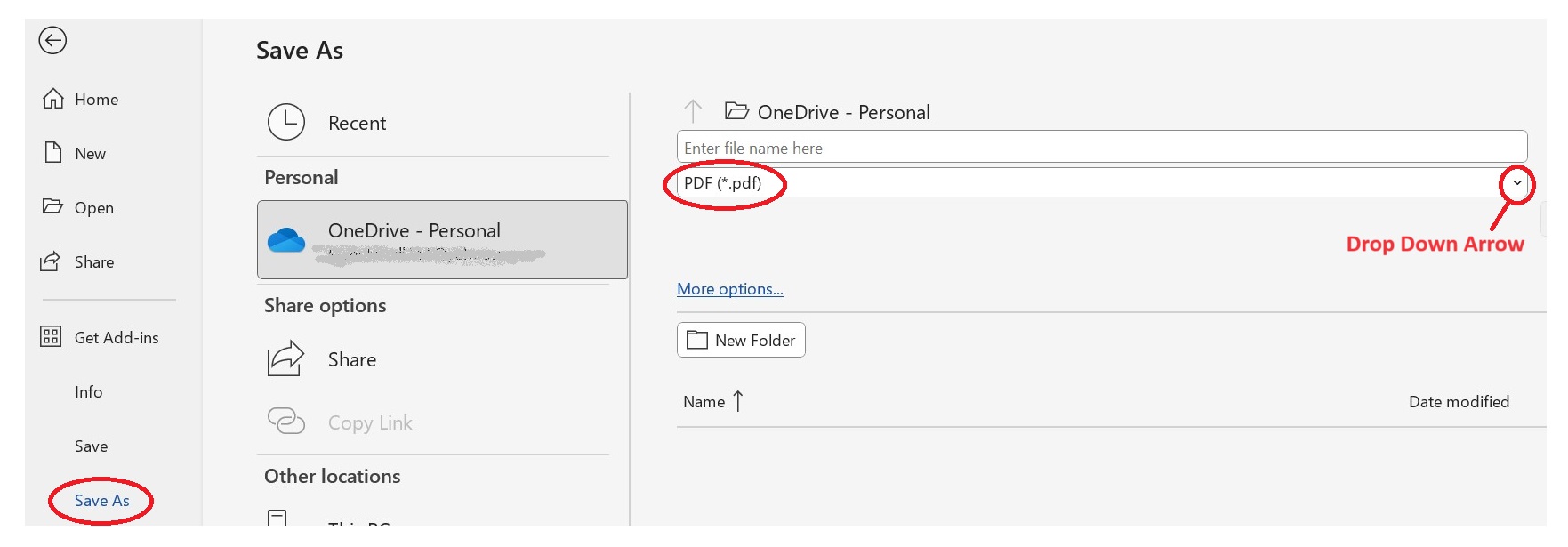
1. Click on File.
2. Click on Save As.
3. Click the arrow on the drop-down box and select PDF (* .pdf).
4. Select a destination for the file and click Save.
Option Two (has worked for me every time — so far).
1. Click on File.
2. Click on Export.
3. Under Export, click on Create PDF/XPS Document (this is probably the default).
4. Then click the button, Create PDF/XPS.

5. In the dialog box, type an appropriate file name.
6. Next to “File type”, make sure it shows PDF.
7. Click the Options button.
8. Under PDF Options, click to place a checkmark next to PDF/A Compliant.
9. Click on OK.
10. Click on the Publish button.

If you have Adobe Acrobat Pro, you can check that fonts are embedded before attempting to upload your files to KDP or IngramSpark. There are several ways to accomplish this and the step-by-step depends on what version of Adobe Acrobat you have available and the computer operating system you’re using. In other words, too varied to show here. However, there are a multitude of YouTube videos available that discuss the topic.
However, I will say that I don’t own Adobe Acrobat Pro and (so far) haven’t found it necessary. Since discovering Option 2 for creating a PDF as discussed above, I’ve had no “fonts not embedded” problems.
Please feel free to share your insights and questions in the comments below.
 kaygoodnight.com